Kafka Simulator docs menu
Run your first scenario
Open the acks trade-off scenario, step through its timeline, and use the Steps, Why, Inspector and Metrics tabs to see why Kafka refused a write.
On this page
The simulator runs in your browser, so there is nothing to install and no account to create.
1. Open the scenario
Open the acks trade-off scenario. Its id, 01.1.3, is the value of the scenario parameter in the playground URL.
The first time you open the playground, a Getting started card appears in the lower left of the canvas: thirteen things to try, each ticking itself off as you do it, with Show me to point at the place. Close it with ×; ? getting started guide, in the ⋯ menu at the right of the top bar, brings it back.
The scenario opens paused on its first frame:
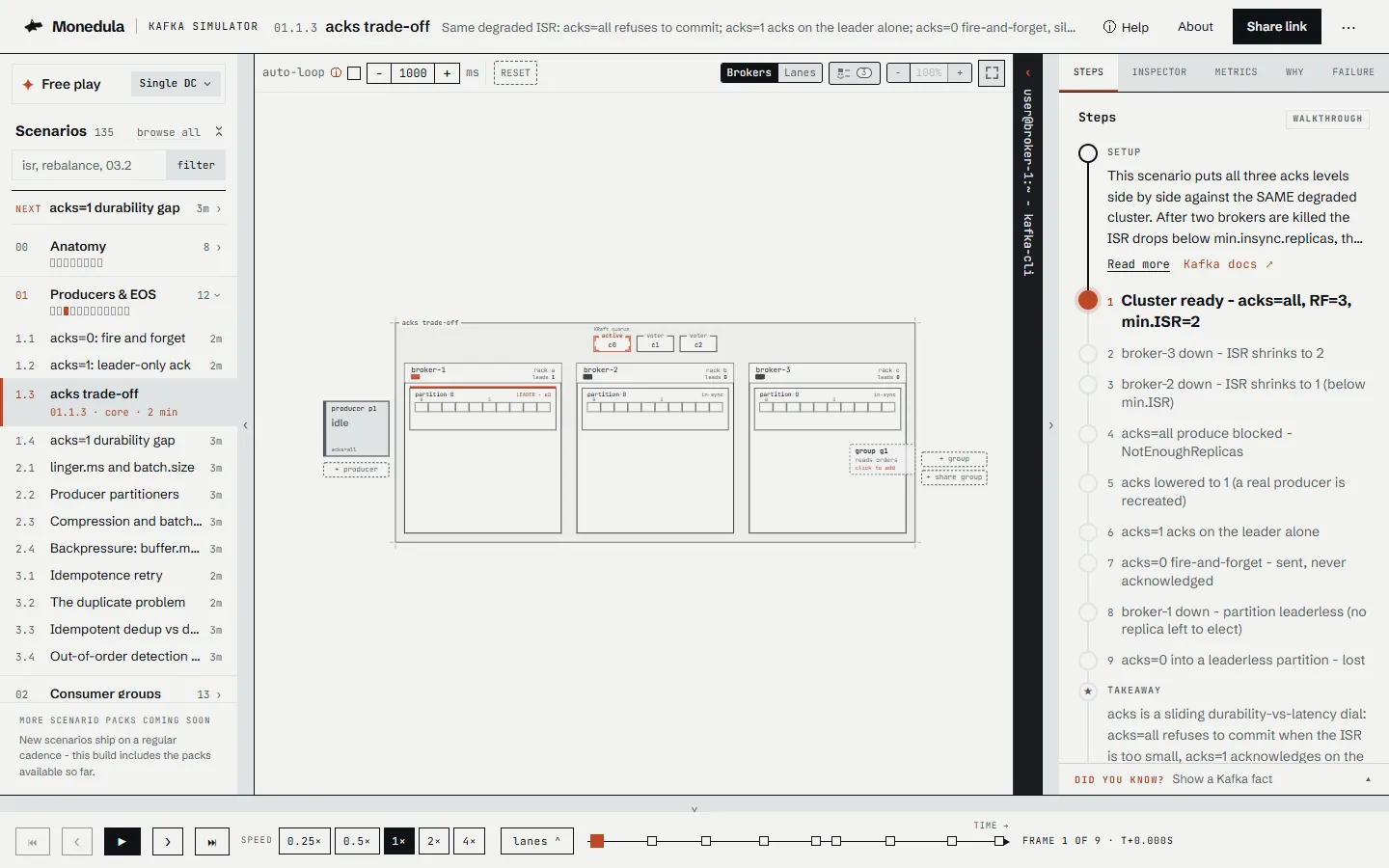
The window has four areas:
- Scenario library, on the left, grouped by module, with a search box and filters.
- Canvas, in the middle: the brokers, their partitions as rows of cells, and the producer, with the legend, zoom and fullscreen in the toolbar above. Point at a row of the legend and the canvas rings every place that symbol is drawn.
- Right panel, with the tabs Steps, Inspector, Metrics and Why.
- Event timeline, along the bottom: one tick per frame, with the transport controls underneath.
The right panel also has a Failure tab, which holds the Failure Lab. This tutorial does not use it.
2. Step through the timeline
The timeline reads “Event timeline · 9 frames”. Select ❯ (Next) twice.
- Frame 2: broker-3 goes down, and the in-sync replica set (ISR) of the
orderspartition shrinks to two replicas. - Frame 3: broker-2 goes down as well. The ISR is down to one replica, below the topic’s
min.insync.replicasof 2.
Each press moves the playhead one frame. ▶ plays the remaining frames on its own, and the speed buttons, from 0.25× to 4×, set how fast. ⏮ and ⏭ jump to the first and last frame.
The address bar follows the playhead. After two presses of Next it ends in t=2, the zero-based index of the frame you are on, so a copied link opens at the same frame.
3. Read the Steps tab
A scripted scenario opens on the Steps tab. The steps hang off a line that fills as you go. At the top, Setup says what the scenario compares and links to the Apache Kafka documentation (Kafka docs). Then comes one step per frame: steps behind you show their label with a check, the step you are on opens with its short teaching note, and the steps ahead wait as labels. Takeaway, at the end, sums the scenario up and lights up when you reach the last step.
Select step 4, “acks=all produce blocked - NotEnoughReplicas”. The playhead jumps to that frame and the step opens its note, as it does for any step.
4. Ask why
On frame 4 the producer has tried to write with acks=all and failed. The producer’s card on the canvas shows the error. Select the Why tab:
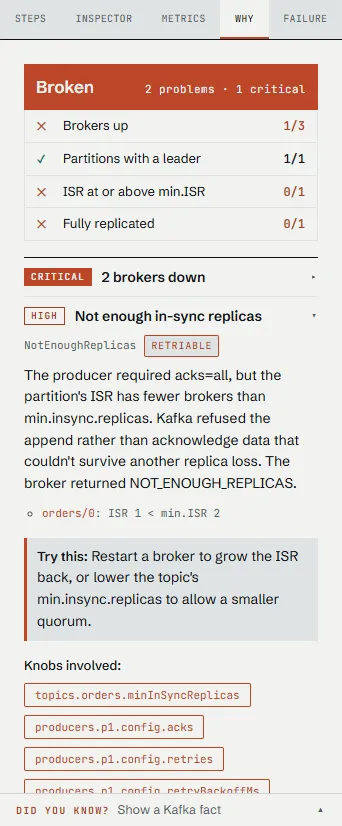
The tab opens on the cluster’s state: a band that says how bad things are, four checks with their counts, then every problem, worst first, the worst one open. Two brokers are down, so 2 brokers down leads. Select Not enough in-sync replicas below it: it explains the failed write in plain words, with a Retriable label and the Kafka name NotEnoughReplicas. Below it are a short explanation, a Try this suggestion, the Knobs involved, such as topics.orders.minInSyncReplicas and producers.p1.config.acks, and a Caused by link to the event behind the error.
Each knob is a button. Select producers.p1.config.acks: the Inspector opens on producer p1 with the setting highlighted. On a healthy frame the band reads Cluster is healthy. and every check passes.
5. Inspect the cause
Select the tick for frame 4 on the timeline, the one labelled “p1 ✗”. The Inspector tab opens on that event:
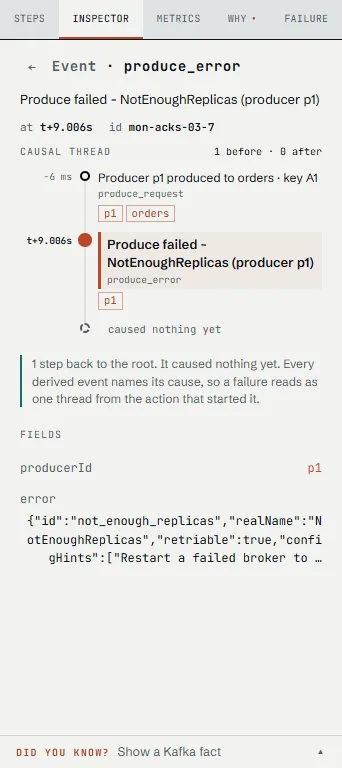
It shows the event’s kind, produce_error, its time, a one-line description, its fields, and a caused by chain: here, the produce_request for the record with key A1. Select a cause in the chain to move to it.
The Inspector also works on the cluster itself. Select broker-1 on the canvas, the only broker still up on this frame. It lists the partitions the broker holds, whether it leads or follows each one, whether it is in the ISR and its log end offset (LEO). The partitions, the producer and the cluster have their own views. With nothing selected, the Inspector lists the events of the current frame and the events scheduled next.
The selection is part of the URL, as select=..., so a shared link opens on the same item.
6. Check the metrics
Select the Metrics tab:
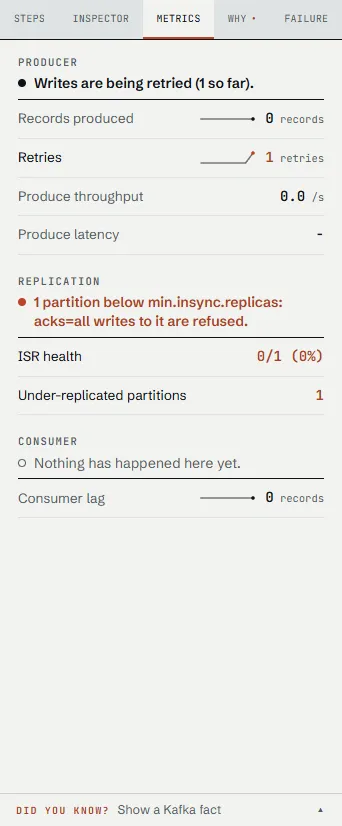
The metrics sit under Producer, Replication and Consumer, each opened by one sentence on how that part is doing. On frame 4, Replication says one partition is below min.insync.replicas and that acks=all writes to it are refused; ISR health and Under-replicated partitions show the numbers. Select a metric to open it: it shows the Kafka metric behind it, such as UnderMinIsrPartitionCount for ISR health, explains it, and offers Inspect the event that moved it, which opens that event in the Inspector.
7. Fork the scenario
A scripted scenario is a recording. To ask “what if”, fork it into a sandbox. Select broker-1 on the canvas, then kill · hard broker-1. The broker goes down at once, and a note at the foot of the canvas says Forked into a sandbox at the frame you were on, with Undo for eight seconds.
The scenario is now a live sandbox, forked from the frame you were on. The top bar says it is forked, the timeline records your own actions from here, and the address bar carries them in an actions parameter. Undo returns to the walkthrough on the same step; after it is gone, select Reset, above the canvas, to abandon the sandbox and return to the scripted timeline.
Where to go next
- Build a cluster in free play and break it starts from a blank sandbox instead of a recording.
- The scenario catalog lists every scenario in this release, each with a link that opens it in the playground.
- The acks trade-off scenario page has this walkthrough as text, step by step, and the scenario pages do the same for every scenario in this release.